

Your basket
Why this matters
When an inspector asks about training, you need to say who has done what, and show the certificates. The dashboard keeps all of it in one place: who has which course, who has finished, who has stopped halfway, and whose refresher is coming up. You give courses from the same screen.
Step by step
1. See your seats.
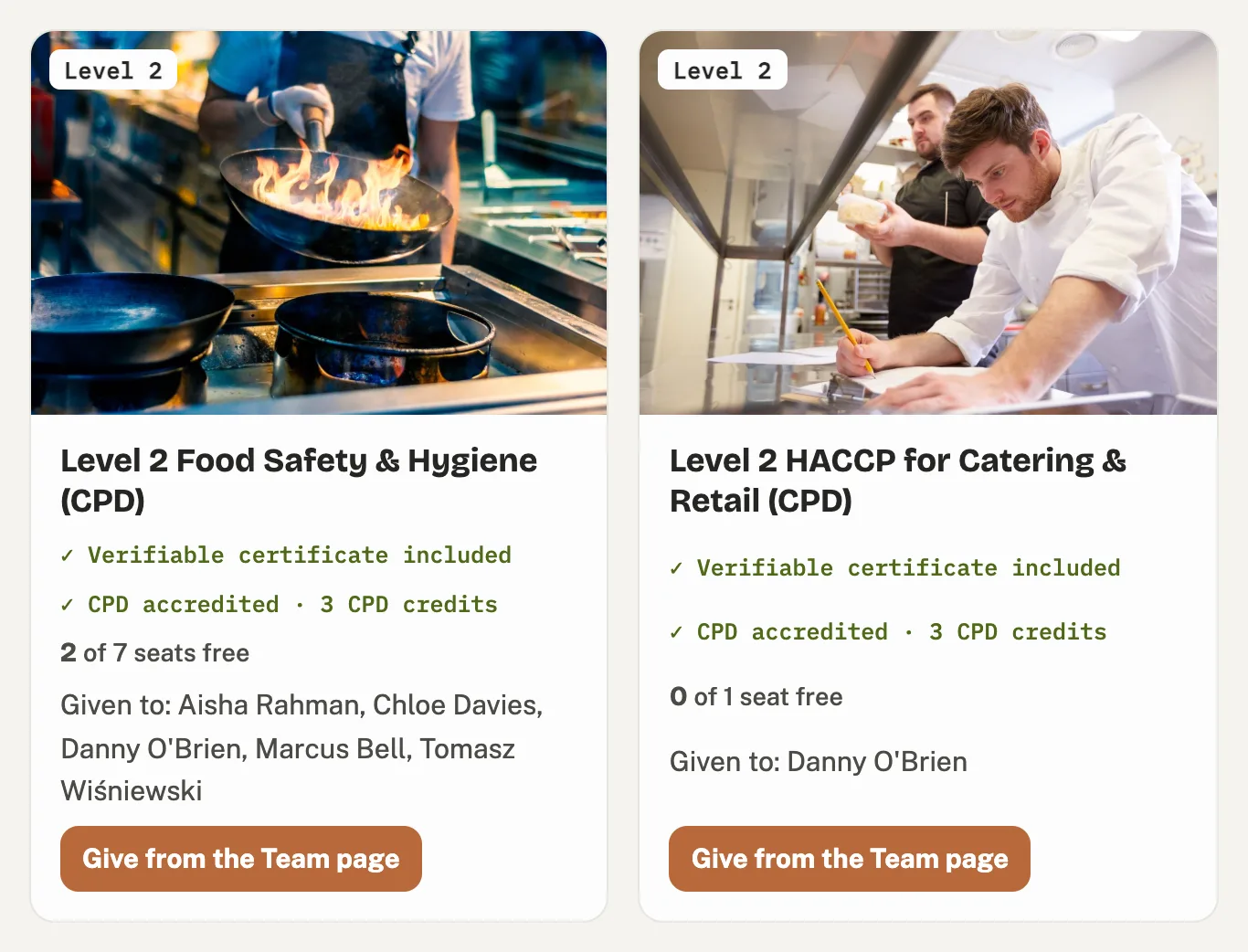
Open Courses. Each course shows how many seats are free and who has it already. A seat is one place on a course for one person.
2. Give someone a course.
Open Team and find the person. Type their name in the search box if your team is long. Press Give a course, choose the course and press Give course. It uses one free seat, and the course is on their training page straight away.

3. Check it's there.
The course now shows on their row as Not started. It changes to a percentage as soon as they begin.

4. Read the numbers at the top.
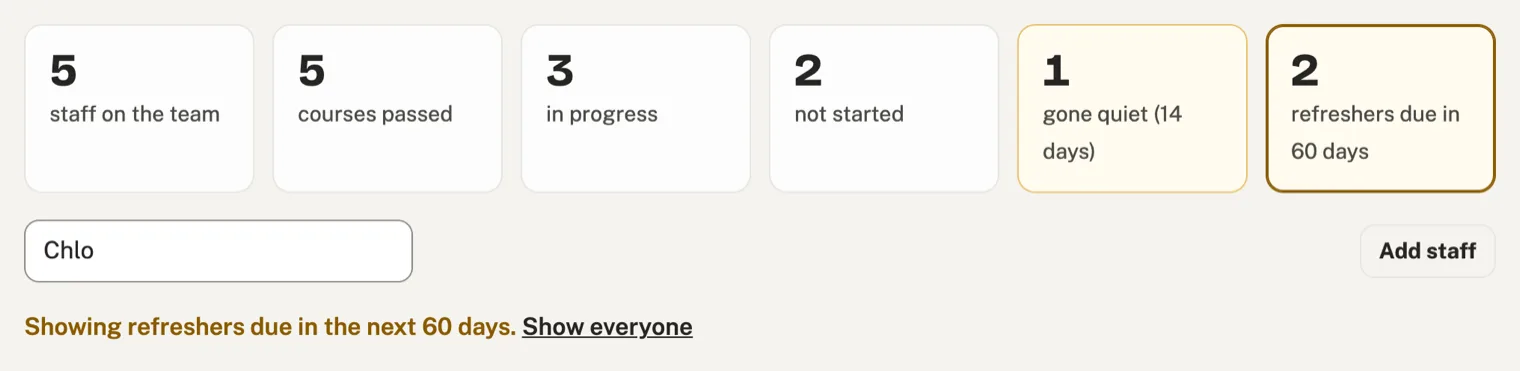
They count everyone on your team: courses passed, in progress and not started. The two amber boxes are the ones that need you.

5. Find who has gone quiet.
Gone quiet means someone started a course but hasn't done any of it for 14 days. Press that box to see just those people. A word from you usually gets them going again. Press Show everyone to see the whole team again.

6. See whose refresher is due.
Every certificate has a recommended refresher date. Press refreshers due in 60 days to see who has one coming up. The date is on their course in amber. A certificate stays valid; the refresher date is when the training should be done again.
To book their refresher, press Give a course on their row and choose the course marked refresher. It uses one free seat (with Team membership, none) and starts the course again from the beginning.

Their row then shows the course as Not started, ready for them to take again. Their certificate from last time stays valid: Last passed beside it opens it, ready to print, and anyone checking its number online still sees it.

7. Download a certificate.
A passed course shows the date it was passed, with a download arrow. Press it to open the certificate as a PDF, ready to print or show an inspector. Every certificate is in the person's name, in English, and can be checked online by its number.

Where it goes
Everything you give and everything your team finishes stays on Your team. Certificates are also in My Account on the website, and a business on Complete membership sees them in GFH Manager too.
Watch out for
- No free seats left: the box tells you, with a button to buy more seats on the website.

- Team membership: every course is included, so the box shows each course as (membership) and no seats run out.
- Someone leaves: press Remove on their row. A course they hadn't finished goes back to your free seats. Finished training stays on your records.
- Languages: the dashboard works in 15 languages. Choose one in the box at the bottom of the menu. Certificates are always in English, on purpose, because the person reading them is a UK inspector.